
Before you start
- A direct HTTPS audio URL from your SHOUTcast or Icecast host.
- Access to add an embed to your website, or a hosted page plan if you need a site.
Set it up in three steps
Connect and test your stream
Open Streams in your station workspace. Add the direct HTTPS audio URL, give it a name, and use the audio test before saving.
Create your player
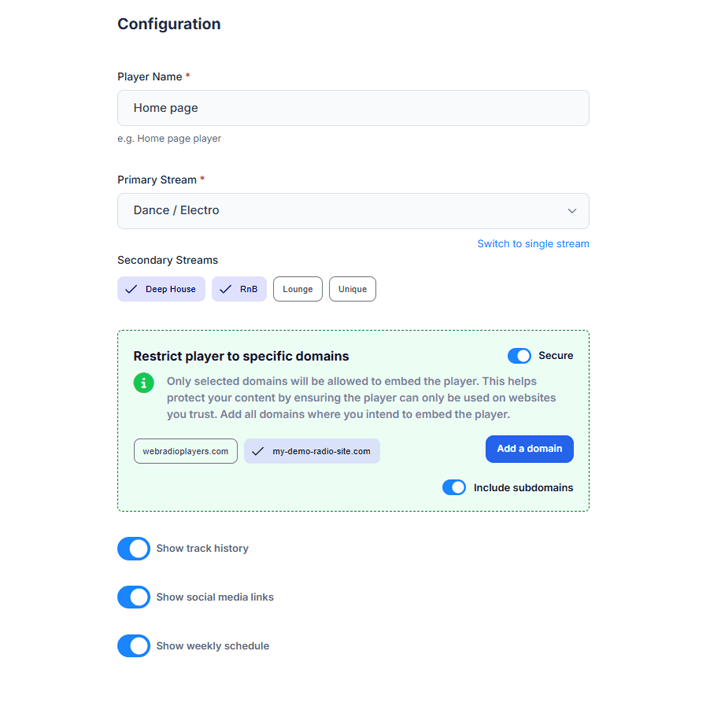
Choose a player design and theme, assign your stream, then add your branding. Enable the features available on your plan.
Publish the generated embed
Copy the player element and required scripts from the completed setup. Place the element where listeners should see it, include the scripts, and test your published website.
Your stream hosting stays where it is
Your host continues to deliver the audio and manage your broadcasting setup. Web Radio Players adds the listener-facing player; it does not replace your encoder, AutoDJ, or streaming bandwidth.
Choose the controls your station needs
Every plan includes all player designs. Pro and above add tools such as scheduling, multiple streams, and country or domain restrictions. Domain restrictions apply to the player embed; they do not secure a direct stream URL that someone obtains elsewhere.
- Use now-playing information and artwork when your source provides suitable metadata.
- Update saved player settings from the dashboard without replacing the embed.
- Compare plan quotas before creating multiple saved player configurations.
Check before sharing
- Press Play on the published page, then test on a phone as well as a desktop. Browsers generally require a listener action before starting audio.
- If audio fails, re-test the direct HTTPS stream in the dashboard. A working station website URL is not necessarily an audio stream URL.
- If audio works but the title or artwork is missing, check the metadata supplied by your stream. Audio playback and metadata availability are separate checks.
Step-by-step documentation
Follow the full walkthrough
Need help with your setup? Contact support.